How to Open a STEP File Without SolidWorks — and Get the Dimensions You Need
It happens every day in every supplier's inbox: a customer sends a STEP file with an RFQ, and nobody in the shop has SolidWorks, CATIA, or NX. The quote is due Friday. What now?
Here's the thing the CAD industry doesn't say out loud: you don't need a CAD license to make a part. Designing a part takes CAD. Reading one doesn't. To quote it, machine it, or inspect it, you need dimensions, tolerances, and an understanding of the geometry — and all of that is available without a $10,000 seat.
What a STEP file actually is
STEP (.step / .stp) is the neutral exchange format of manufacturing — it's how geometry moves between companies regardless of what CAD system made it. When a customer exports a STEP file from SolidWorks or CATIA, the file contains the exact 3D geometry, the assembly structure, and the part names. Everything you need to understand the part travels with the file.
What it isn't: editable design intent. You can't change the model — which, for a supplier, is a feature. You're quoting what they sent, not what someone accidentally dragged.
Your options for opening it
- Ask the customer for PDFs. Slow, and drawings rarely answer every question. You'll be back in their inbox asking for the one dimension the drawing doesn't call out.
- Install a free desktop viewer. Works, but now every estimator and machinist needs software installed and updated, and locked-down shop computers make that a fight with IT.
- Open it in a browser viewer. Upload the file, see the part in seconds, on any computer or tablet. For the "RFQ due Friday" situation, this is the answer.
The GatesFlow CAD viewer is free and browser-based: create a free account, upload the STEP file, and it opens — no install, no license, no credit card.
Getting the data you actually need
Opening the file is step one. Quoting or making the part means extracting information:
- Measure the features that drive cost. Overall envelope, bore diameters, wall thickness, hole spacing — click two points and read the dimension off the geometry itself.
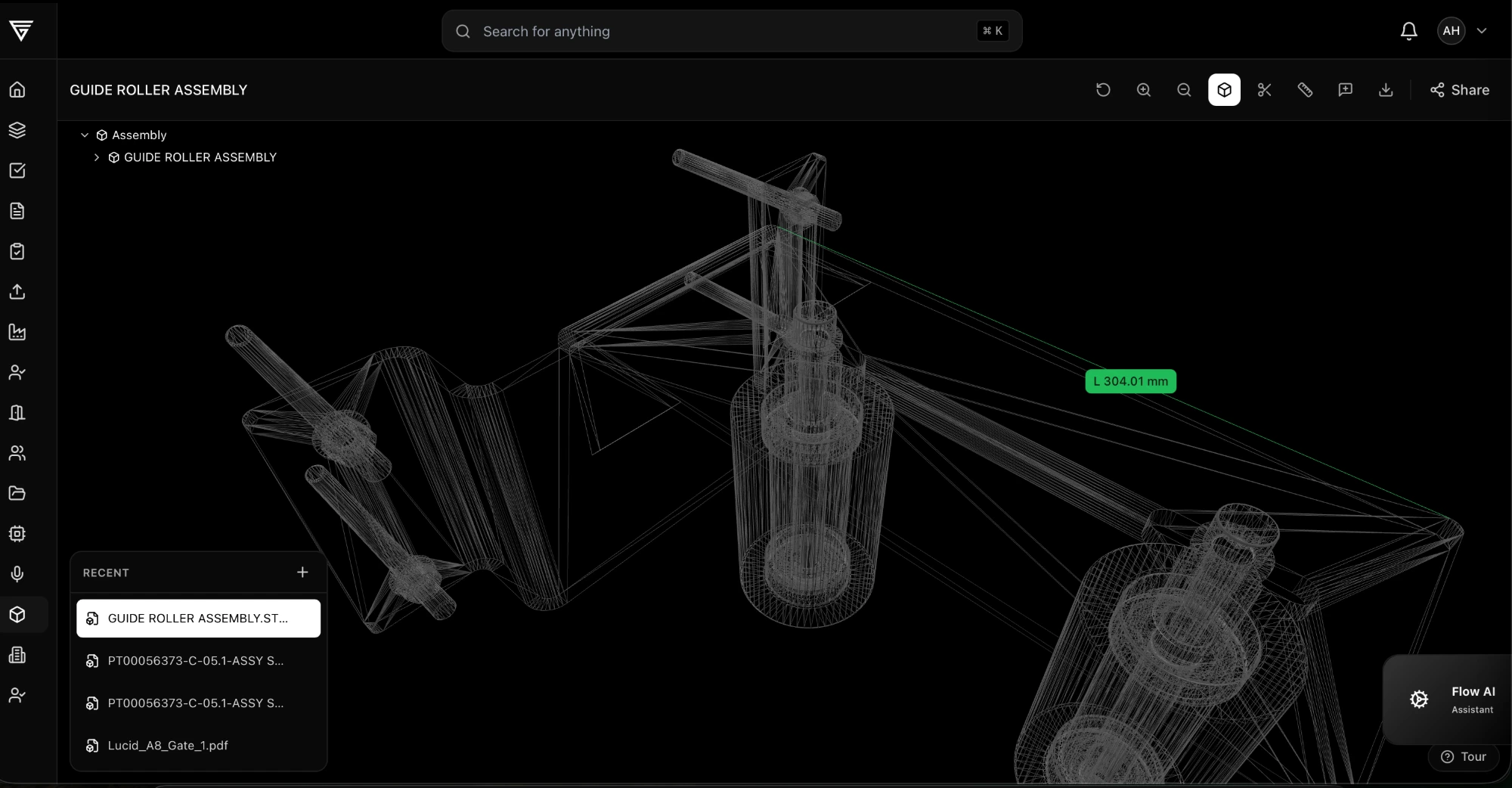 Measuring a STEP assembly in the free GatesFlow CAD viewer — a 304 mm dimension read directly off the model geometry.
- Understand the structure. The assembly tree shows every component and quantity — so you know it's twelve M8 studs, not ten, before you price the hardware.
- See inside. Wireframe and section views reveal internal geometry that a drawing view might not show.
- Ask questions in context. Drop a note on the exact feature ("is this ±0.5° callout critical?") instead of describing it in an email. When your customer shares models through GatesFlow, your notes and their answers stay attached to the geometry.
When the customer shares a link instead of a file
More manufacturers are moving away from emailing files entirely — they share a link to the model. You open it in your browser and see the current revision, their measurements and notes included, with nothing to install and nothing to keep track of. If they rev the part, the same link shows the new version.
That workflow protects both sides: you always quote the current revision, and they keep control of their IP (links can be view-only, expiring, or PIN-protected). We've written more about it in how to share CAD files securely.
The bottom line
If your job is quoting, machining, or inspecting parts, a CAD license is overhead you don't need. Open the STEP file in a free browser viewer, measure what matters, browse the structure, and get to work — and if you want your whole team quoting from one place, a free account adds saving, annotation, and link sharing.
The next time an RFQ lands with a STEP file attached, the answer to "does anyone have SolidWorks?" is: you don't need it.